

「firebase initを実行したけど、生成されたファイルが多くてどれが何だか分からない…」そう感じたことはないでしょうか?
Firebaseでプロジェクトを始めるとき、最初に戸惑うのがこの初期ファイル群ではないでしょうか。
本記事では、Firebaseプロジェクトを初期化した際に自動生成される主要なフォルダとファイル、public、.firebaserc、.gitignore、firebase.jsonについて、それぞれの役割と設定内容を解説しています。
この記事を読めば、各ファイルがプロジェクトでどんな働きをしているのかが明確になり、自信を持って開発を進められるようになります。
firebase initで生成されるファイル
firebase initでプロジェクトディレクトリの初期化を行うと以下の1つのフォルダと3つのファイルが自動生成されます。
- public(フォルダ)
- .firebaserc(ファイル)
- .gitignore(ファイル)
- firebase.json(ファイル)
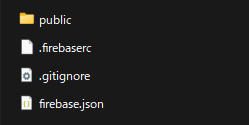
なお、Publicフォルダの中にはindex.htmlと404.htmlが入っています。
編集するファイルはどれか?
全てのファイルの編集が必要なわけではありません。
基本的にいじるのは以下のみです。
- publicフォルダ内
- firebase.json
以下のファイルは、特殊な設定変更やプロジェクトの変更がない限り、基本的に編集の必要はありません。
.gitignore
Gitで管理するファイルを細かく制御したい場合に編集しますが、デフォルト設定でFirebase Hostingのデプロイには影響ありません。
.firebaserc
関連付けられたプロジェクトIDを変更する場合にのみ編集します。
publicフォルダ
Firebase Hostingにおいて、HTML、CSS、JavaScript、画像などのデプロイ対象となるファイルを格納する公開ディレクトリです。
firebase initをする際に指定した名前で生成します。デフォルトではpublicになっています。
初期状態では、「index.html」と「404.html」が入っています。

初期化した後でもfirebase.jsonでフォルダ名を変更することができます。
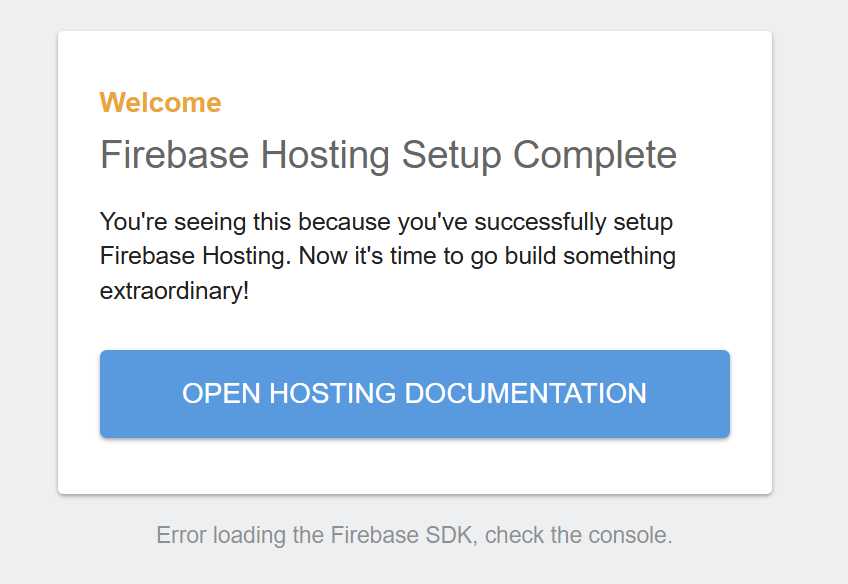
index.htmlの中身
index.htmlの中身は以下のようになっています。
<!DOCTYPE html>
<html>
  <head>
    <meta charset="utf-8">
    <meta name="viewport" content="width=device-width, initial-scale=1">
    <title>Welcome to Firebase Hosting</title>

    <!-- update the version number as needed -->
    <script defer src="/__/firebase/12.4.0/firebase-app-compat.js"></script>
    <!-- include only the Firebase features as you need -->
    <script defer src="/__/firebase/12.4.0/firebase-auth-compat.js"></script>
    <script defer src="/__/firebase/12.4.0/firebase-database-compat.js"></script>
    <script defer src="/__/firebase/12.4.0/firebase-firestore-compat.js"></script>
    <script defer src="/__/firebase/12.4.0/firebase-functions-compat.js"></script>
    <script defer src="/__/firebase/12.4.0/firebase-messaging-compat.js"></script>
    <script defer src="/__/firebase/12.4.0/firebase-storage-compat.js"></script>
    <script defer src="/__/firebase/12.4.0/firebase-analytics-compat.js"></script>
    <script defer src="/__/firebase/12.4.0/firebase-remote-config-compat.js"></script>
    <script defer src="/__/firebase/12.4.0/firebase-performance-compat.js"></script>
    <!--
      initialize the SDK after all desired features are loaded, set useEmulator to false
      to avoid connecting the SDK to running emulators.
    -->
    <script defer src="/__/firebase/init.js?useEmulator=true"></script>

    <style media="screen">
      body { background: #ECEFF1; color: rgba(0,0,0,0.87); font-family: Roboto, Helvetica, Arial, sans-serif; margin: 0; padding: 0; }
      #message { background: white; max-width: 360px; margin: 100px auto 16px; padding: 32px 24px; border-radius: 3px; }
      #message h2 { color: #ffa100; font-weight: bold; font-size: 16px; margin: 0 0 8px; }
      #message h1 { font-size: 22px; font-weight: 300; color: rgba(0,0,0,0.6); margin: 0 0 16px;}
      #message p { line-height: 140%; margin: 16px 0 24px; font-size: 14px; }
      #message a { display: block; text-align: center; background: #039be5; text-transform: uppercase; text-decoration: none; color: white; padding: 16px; border-radius: 4px; }
      #message, #message a { box-shadow: 0 1px 3px rgba(0,0,0,0.12), 0 1px 2px rgba(0,0,0,0.24); }
      #load { color: rgba(0,0,0,0.4); text-align: center; font-size: 13px; }
      @media (max-width: 600px) {
        body, #message { margin-top: 0; background: white; box-shadow: none; }
        body { border-top: 16px solid #ffa100; }
      }
    </style>
  </head>
  <body>
    <div id="message">
      <h2>Welcome</h2>
      <h1>Firebase Hosting Setup Complete</h1>
      <p>You're seeing this because you've successfully setup Firebase Hosting. Now it's time to go build something extraordinary!</p>
      <a target="_blank" href="https://firebase.google.com/docs/hosting/">Open Hosting Documentation</a>
    </div>
    <p id="load">Firebase SDK Loading…</p>

    <script>
      document.addEventListener('DOMContentLoaded', function() {
        const loadEl = document.querySelector('#load');
        // // 🔥🔥🔥🔥🔥🔥🔥🔥🔥🔥🔥🔥🔥🔥🔥🔥🔥🔥🔥🔥🔥🔥🔥🔥🔥🔥🔥🔥🔥🔥🔥
        // // The Firebase SDK is initialized and available here!
        //
        // firebase.auth().onAuthStateChanged(user => { });
        // firebase.database().ref('/path/to/ref').on('value', snapshot => { });
        // firebase.firestore().doc('/foo/bar').get().then(() => { });
        // firebase.functions().httpsCallable('yourFunction')().then(() => { });
        // firebase.messaging().requestPermission().then(() => { });
        // firebase.storage().ref('/path/to/ref').getDownloadURL().then(() => { });
        // firebase.analytics(); // call to activate
        // firebase.analytics().logEvent('tutorial_completed');
        // firebase.performance(); // call to activate
        //
        // // 🔥🔥🔥🔥🔥🔥🔥🔥🔥🔥🔥🔥🔥🔥🔥🔥🔥🔥🔥🔥🔥🔥🔥🔥🔥🔥🔥🔥🔥🔥🔥

        try {
          let app = firebase.app();
          let features = [
            'auth',
            'database',
            'firestore',
            'functions',
            'messaging',
            'storage',
            'analytics',
            'remoteConfig',
            'performance',
          ].filter(feature => typeof app[feature] === 'function');
          loadEl.textContent = `Firebase SDK loaded with ${features.join(', ')}`;
        } catch (e) {
          console.error(e);
          loadEl.textContent = 'Error loading the Firebase SDK, check the console.';
        }
      });
    </script>
  </body>
</html>
対象の画面は以下です。
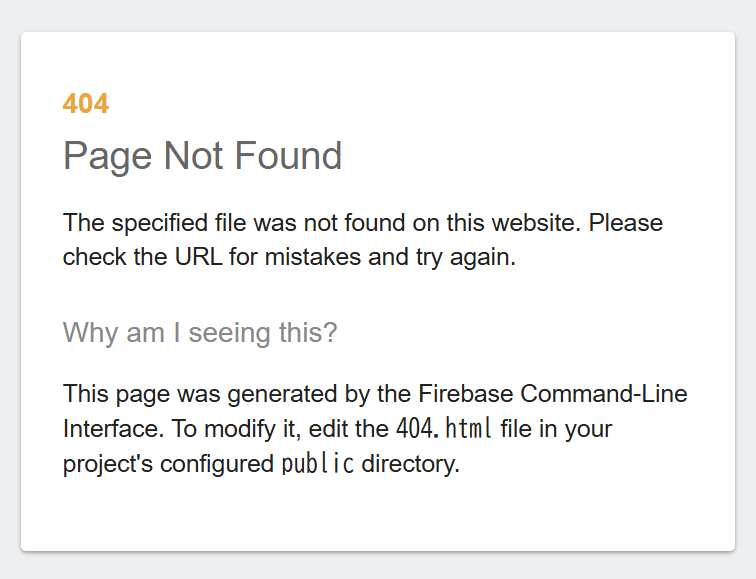
404.htmlの中身
404.htmlは存在しないページにアクセスしたときに表示する画面の内容です。
<!DOCTYPE html>
<html>
  <head>
    <meta charset="utf-8">
    <meta name="viewport" content="width=device-width, initial-scale=1">
    <title>Page Not Found</title>

    <style media="screen">
      body { background: #ECEFF1; color: rgba(0,0,0,0.87); font-family: Roboto, Helvetica, Arial, sans-serif; margin: 0; padding: 0; }
      #message { background: white; max-width: 360px; margin: 100px auto 16px; padding: 32px 24px 16px; border-radius: 3px; }
      #message h3 { color: #888; font-weight: normal; font-size: 16px; margin: 16px 0 12px; }
      #message h2 { color: #ffa100; font-weight: bold; font-size: 16px; margin: 0 0 8px; }
      #message h1 { font-size: 22px; font-weight: 300; color: rgba(0,0,0,0.6); margin: 0 0 16px;}
      #message p { line-height: 140%; margin: 16px 0 24px; font-size: 14px; }
      #message a { display: block; text-align: center; background: #039be5; text-transform: uppercase; text-decoration: none; color: white; padding: 16px; border-radius: 4px; }
      #message, #message a { box-shadow: 0 1px 3px rgba(0,0,0,0.12), 0 1px 2px rgba(0,0,0,0.24); }
      #load { color: rgba(0,0,0,0.4); text-align: center; font-size: 13px; }
      @media (max-width: 600px) {
        body, #message { margin-top: 0; background: white; box-shadow: none; }
        body { border-top: 16px solid #ffa100; }
      }
    </style>
  </head>
  <body>
    <div id="message">
      <h2>404</h2>
      <h1>Page Not Found</h1>
      <p>The specified file was not found on this website. Please check the URL for mistakes and try again.</p>
      <h3>Why am I seeing this?</h3>
      <p>This page was generated by the Firebase Command-Line Interface. To modify it, edit the <code>404.html</code> file in your project's configured <code>public</code> directory.</p>
    </div>
  </body>
</html>
表示は以下の内容です。
.firebaserc
.firebasercは、プロジェクトのエイリアス(別名)やデフォルトプロジェクトIDなど、Firebase CLIの設定を保持するファイルです。
これにより、プロジェクトの切り替えなどを簡単に行えます。
例えば、以下のように初期設定で選択したプロジェクト名が入っています。
{
  "projects": {
    "default": "test-1234e"
  }
}
.gitignore
.gitignoreは、Gitのバージョン管理から除外するファイルやディレクトリを指定します。
これにより、不要なファイル(例: .firebaseなど)がリポジトリに含まれるのを防ぎます。
デフォルトで既に管理対象外のファイルやディレクトリが記載されています。
# Logs
logs
*.log
npm-debug.log*
yarn-debug.log*
yarn-error.log*
firebase-debug.log*
firebase-debug.*.log*

# Firebase cache
.firebase/

# Firebase config

# Uncomment this if you'd like others to create their own Firebase project.
# For a team working on the same Firebase project(s), it is recommended to leave
# it commented so all members can deploy to the same project(s) in .firebaserc.
# .firebaserc

# Runtime data
pids
*.pid
*.seed
*.pid.lock

# Directory for instrumented libs generated by jscoverage/JSCover
lib-cov

# Coverage directory used by tools like istanbul
coverage

# nyc test coverage
.nyc_output

# Grunt intermediate storage (http://gruntjs.com/creating-plugins#storing-task-files)
.grunt

# Bower dependency directory (https://bower.io/)
bower_components

# node-waf configuration
.lock-wscript

# Compiled binary addons (http://nodejs.org/api/addons.html)
build/Release

# Dependency directories
node_modules/

# Optional npm cache directory
.npm

# Optional eslint cache
.eslintcache

# Optional REPL history
.node_repl_history

# Output of 'npm pack'
*.tgz

# Yarn Integrity file
.yarn-integrity

# dotenv environment variables file
.env

# dataconnect generated files
.dataconnect
firebase.json
firebase.jsonは、Firebaseプロジェクト全体の設定を一元管理する中心的な設定ファイルです。
どのサービスを有効にするかによって、含まれる設定セクションが変わります。
主に以下の設定を含みます。
- Hosting
公開ディレクトリの指定(public)やリダイレクト、リライト、カスタムヘッダーなどの設定。 - Functions
Cloud Functionsの実行ランタイムやソースディレクトリなどの設定。 - Firestore/Database/Storage
セキュリティルールやインデックスの設定ファイルの場所。
例えば、以下の場合、Firebase Hostingにおいて、デプロイ対象のディレクトリ名が「public」、デプロイの対象外となるディレクトリやファイルを「ignore」に記載しています。
{
  "hosting": {
    "public": "public",
    "ignore": [
      "firebase.json",
      "**/.*",
      "**/node_modules/**"
    ]
  }
}
上記のようにFirebaseの初期設定で生成されるフォルダやファイルの中身を理解しておくことが、より実践的な開発につながります。